
News / How to Use My Collection
How to Use My Collection
- Search by name, ID, or genetics to find any animal instantly
- Status filters narrow by Breeder, Holdback, On Loan, Retired, Deceased, or Pet Only
- Card View for visual browsing; List View for data work and auditing
- Quick action buttons on each row: Preview, Edit, Log Activity, QR Postcard
- Animal profile shows identity, genetics, husbandry, acquisition, and full activity timeline in one place
My Collection is your central hub for every animal in your program. From here you can search by name, ID, or genetics; filter by status; switch between card and list views; and open any animal's full profile.
Steps
Step 1: Open My Collection
Click My Collection in the left sidebar under the ANIMALS section. The page loads with your full animal list, stat cards at the top, and filter controls.
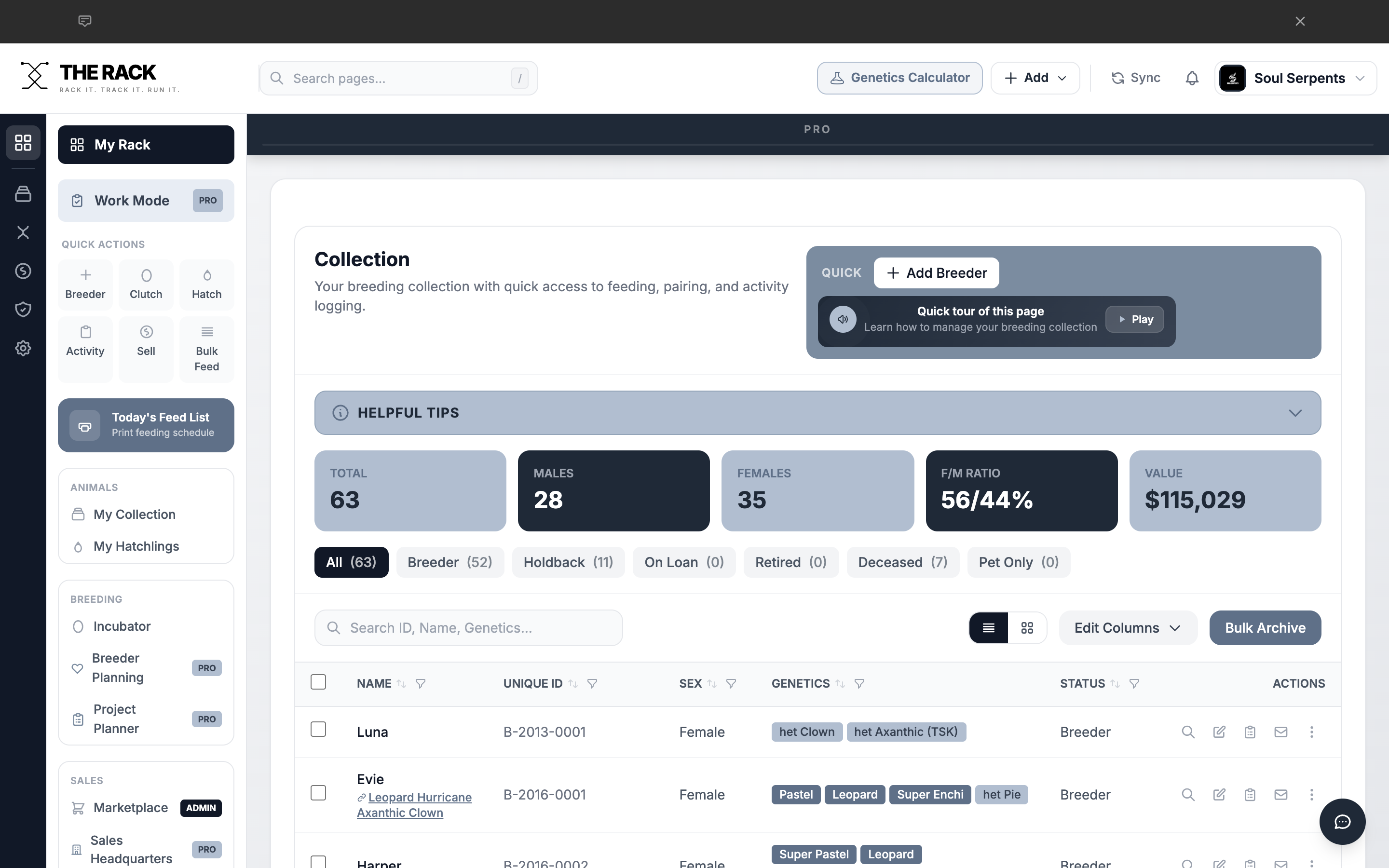
My Collection page with stat cards, status filters, and the animal table.
Step 2: Search for an Animal
Use the Search ID, Name, Genetics... search bar below the filter buttons. Start typing and results filter in real time. You can search by name, Unique ID, or gene name (type "Piebald" to find all animals carrying that gene).
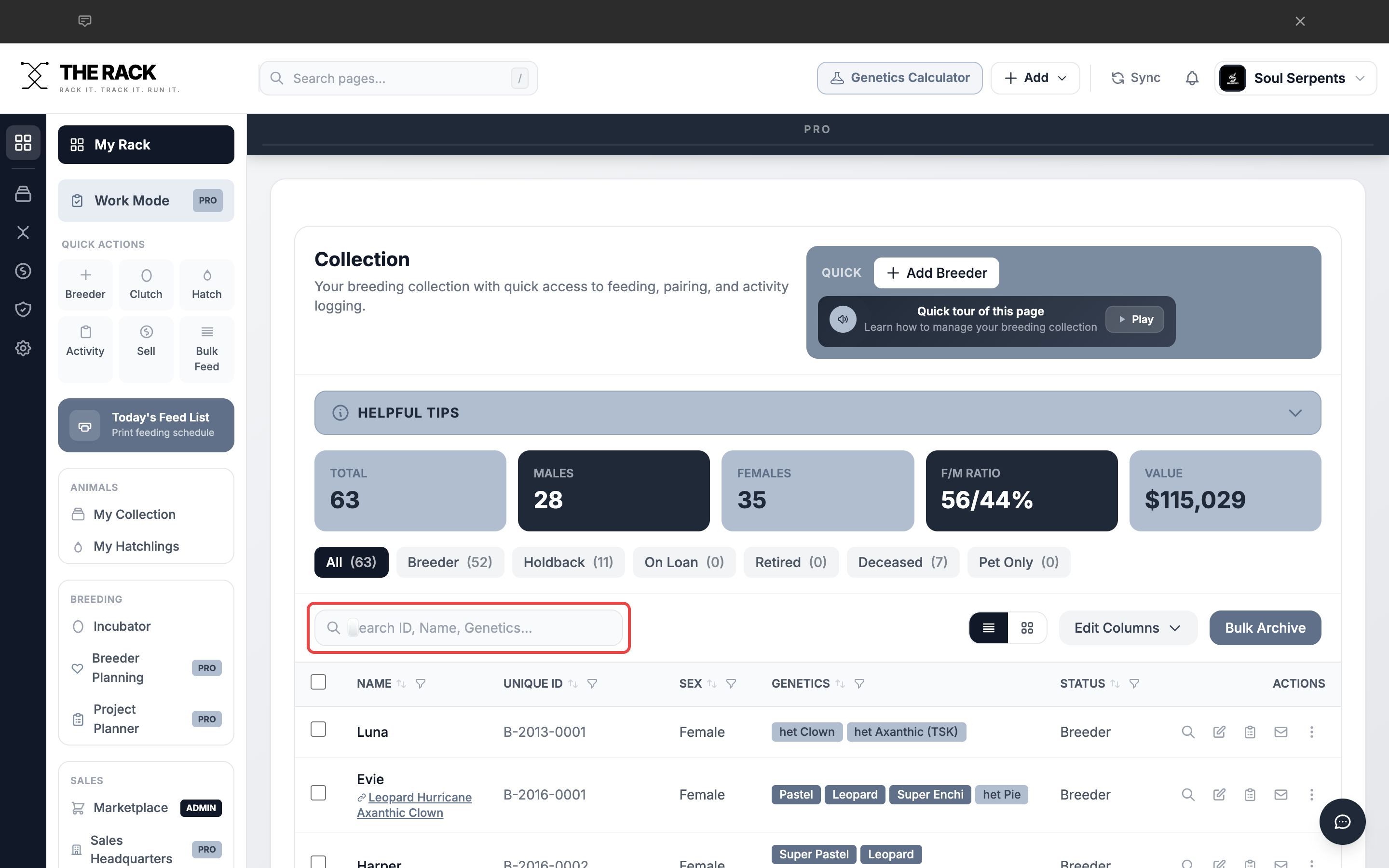
The collection search bar filters results in real time as you type.
Find any animal in seconds
Search by Name. Filter by Status. See Everything.
THE RACK's collection management lets you search by name, ID, or genetics across your entire program. Filter by status, switch views, and take action on any animal without leaving the page.
See Collection ManagementStep 3: Filter by Status
Use the status filter buttons above the search bar to narrow your view. Each button shows the count of animals in that status.
| Filter | What It Shows |
|---|---|
| All | Every animal in your collection (excluding deceased and archived) |
| Breeder | Animals marked with Breeder status |
| Holdback | Animals you are holding back for future breeding or evaluation |
| On Loan | Animals currently loaned to another breeder |
| Retired | Animals no longer in active breeding rotation |
| Deceased | Animals that have passed |
| Pet Only | Animals designated as pets, not for breeding |
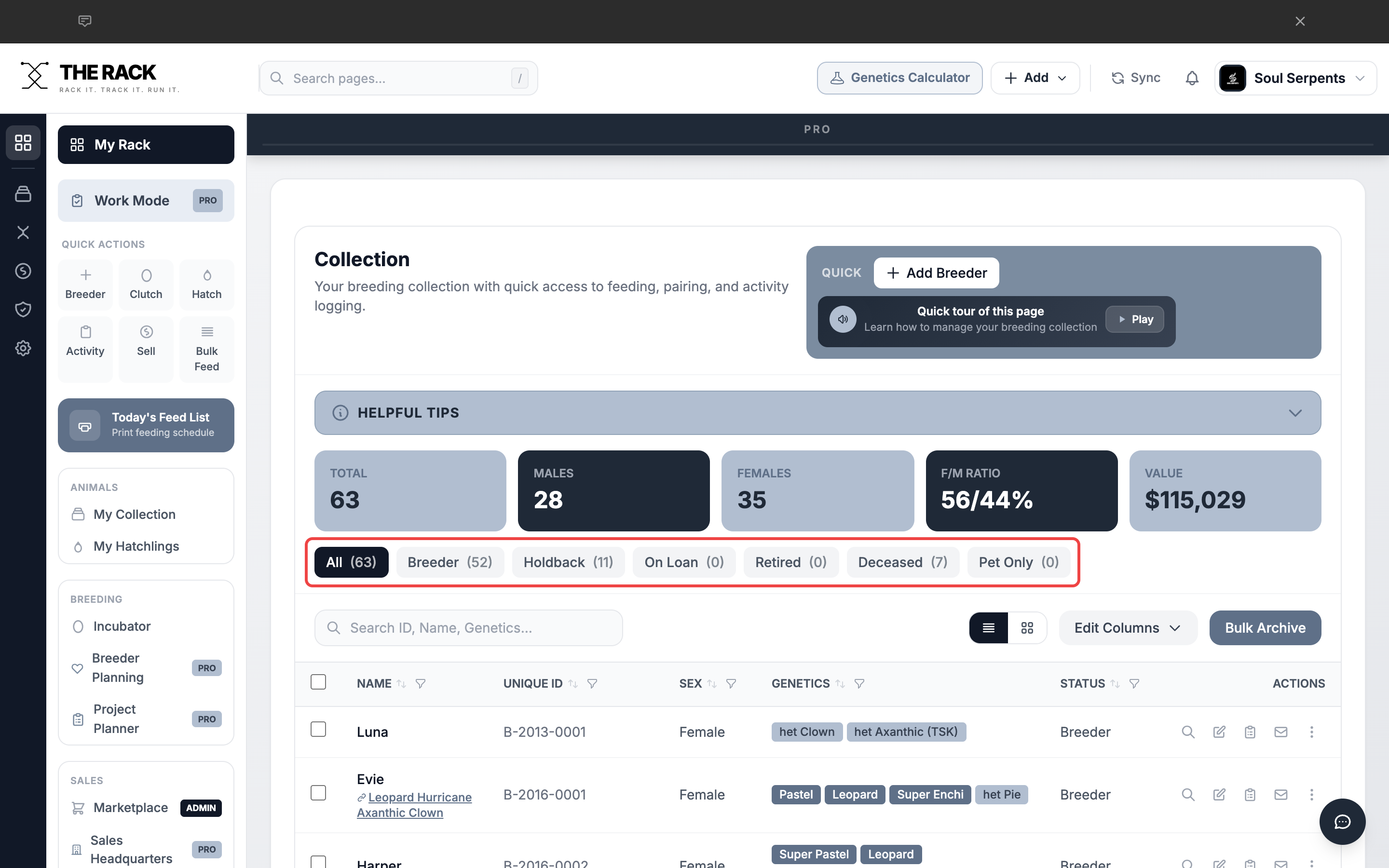
Status filter buttons with counts. Click any filter to narrow the list.
Step 4: Switch Between Card View and List View
- List View (three lines icon) -- Shows animals in a dense table with columns for Name, Unique ID, Sex, Genetics, Status, and action buttons. Best for data entry and auditing.
- Card View (grid icon) -- Shows each animal as a visual card with photo, sex, and status badges. Best for browsing your collection visually or showing animals to buyers.
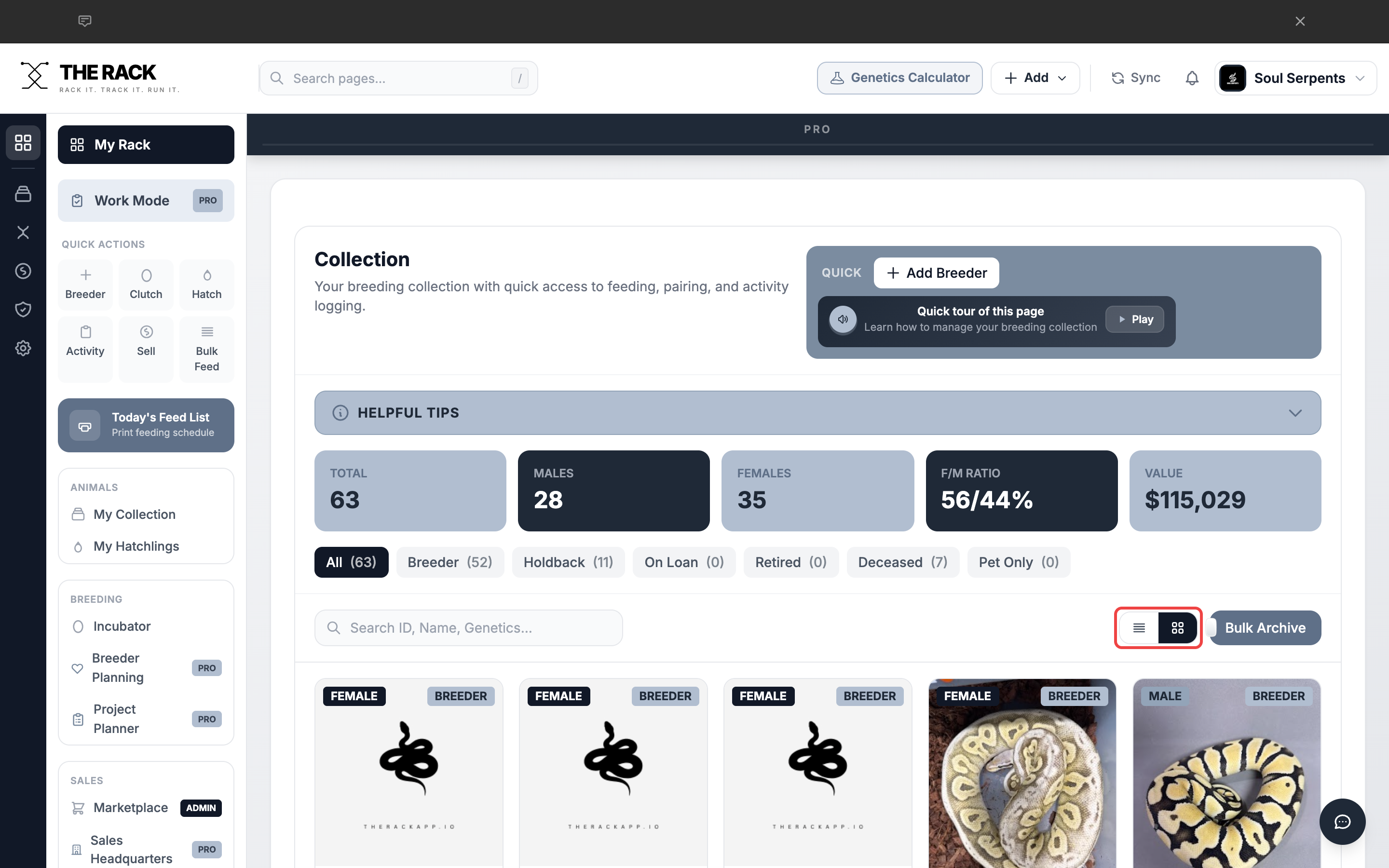
Card View shows each animal with a photo and key details.
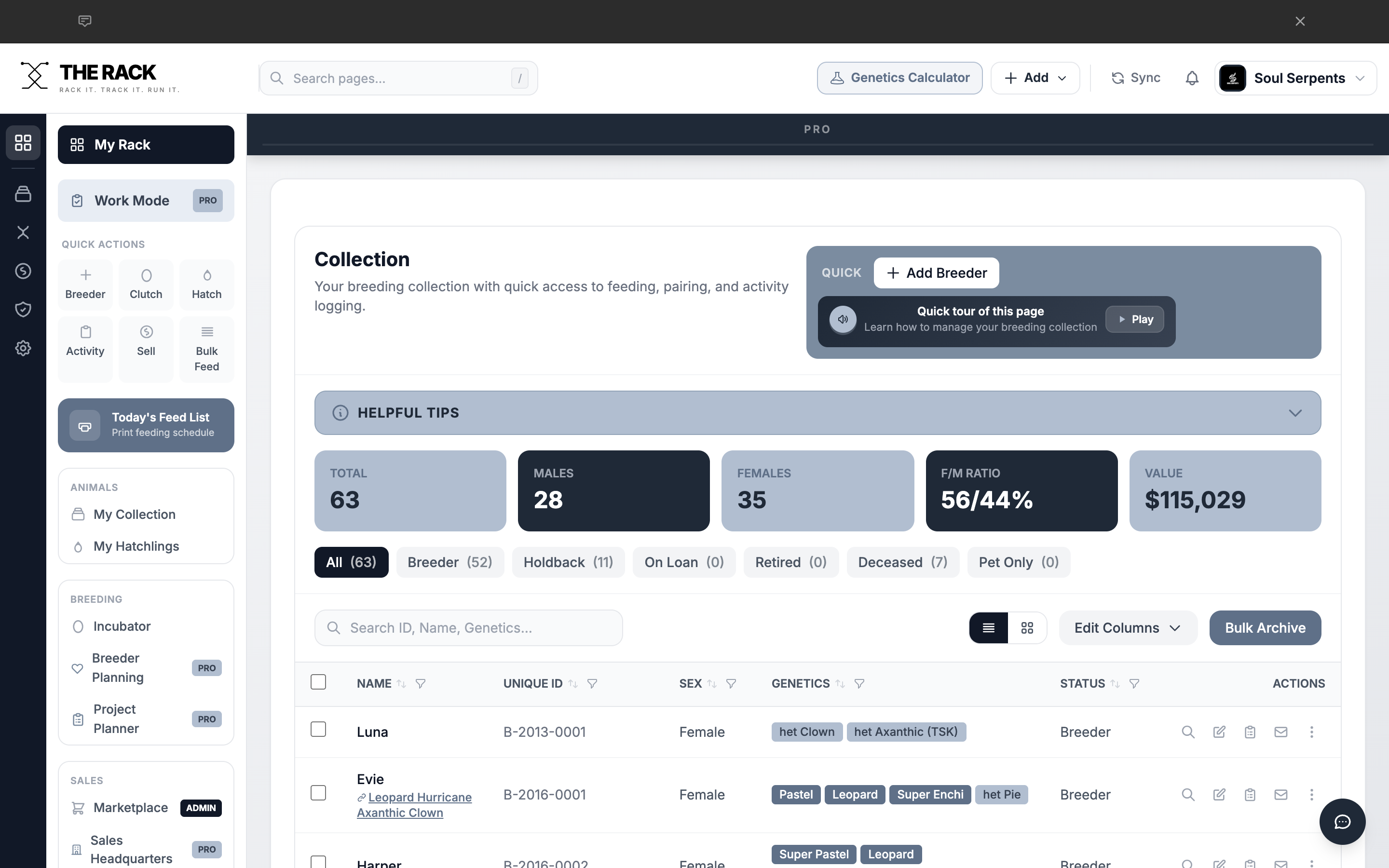
List View shows animals in a dense table for quick scanning and data work.
Step 5: Use Quick Actions
Each animal row in List View has action buttons on the right side:
| Icon | Action |
|---|---|
| Magnifying Glass | Preview -- Opens the animal's profile in a quick-view modal |
| Pencil | Edit -- Opens the edit form to update this animal's information |
| Clipboard | Log Activity -- Log a feeding, shed, weight, pairing, or other activity |
| QR Code Postcard -- Generate a QR code postcard for this animal | |
| Three Dots | More -- Additional options menu |
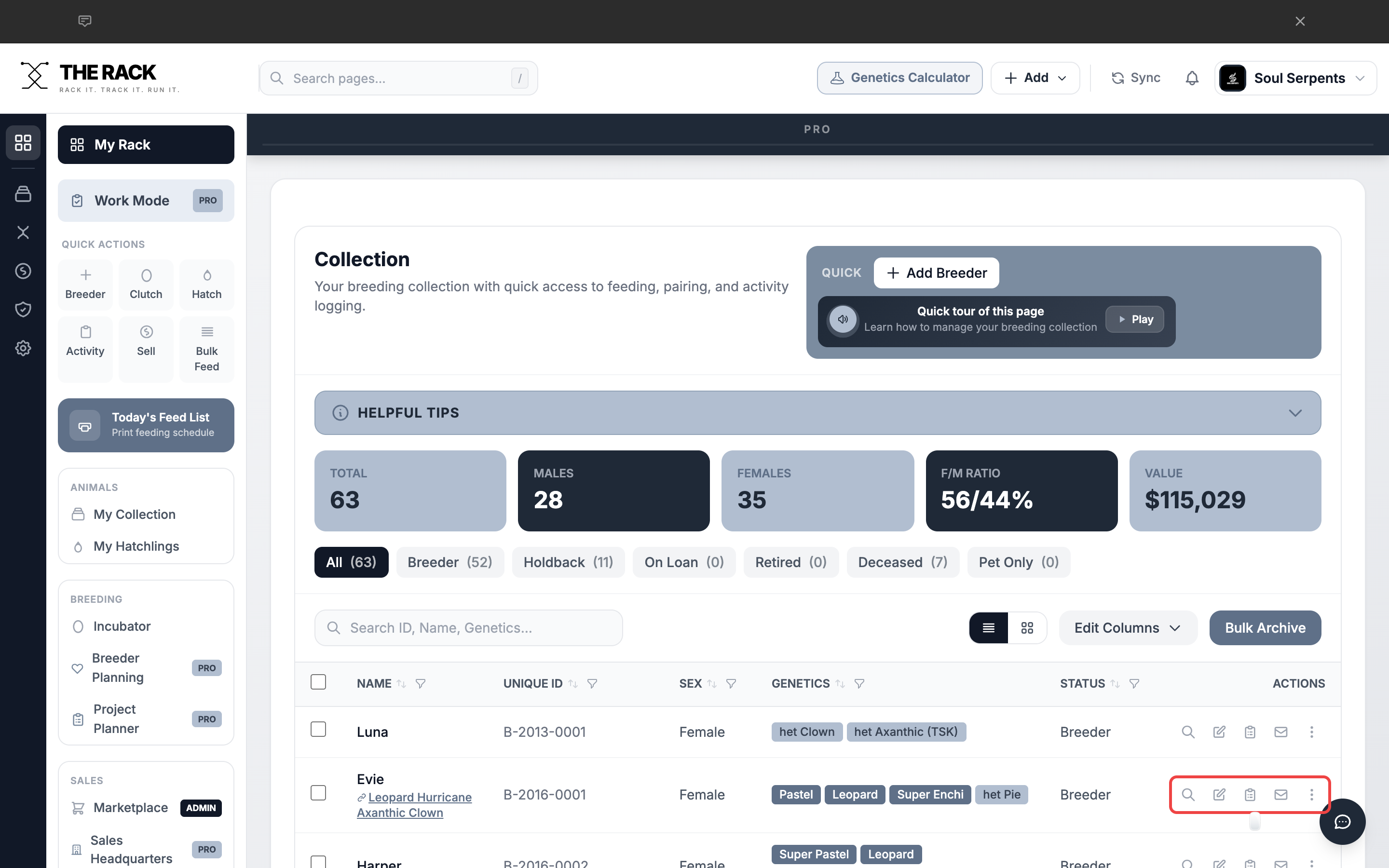
Quick action buttons on each animal row.
Step 6: Upload a Photo
Click the Preview button on any animal row to open their profile. The PHOTO section appears in the top right of the profile modal. Click the dashed photo placeholder to upload an image from your device.
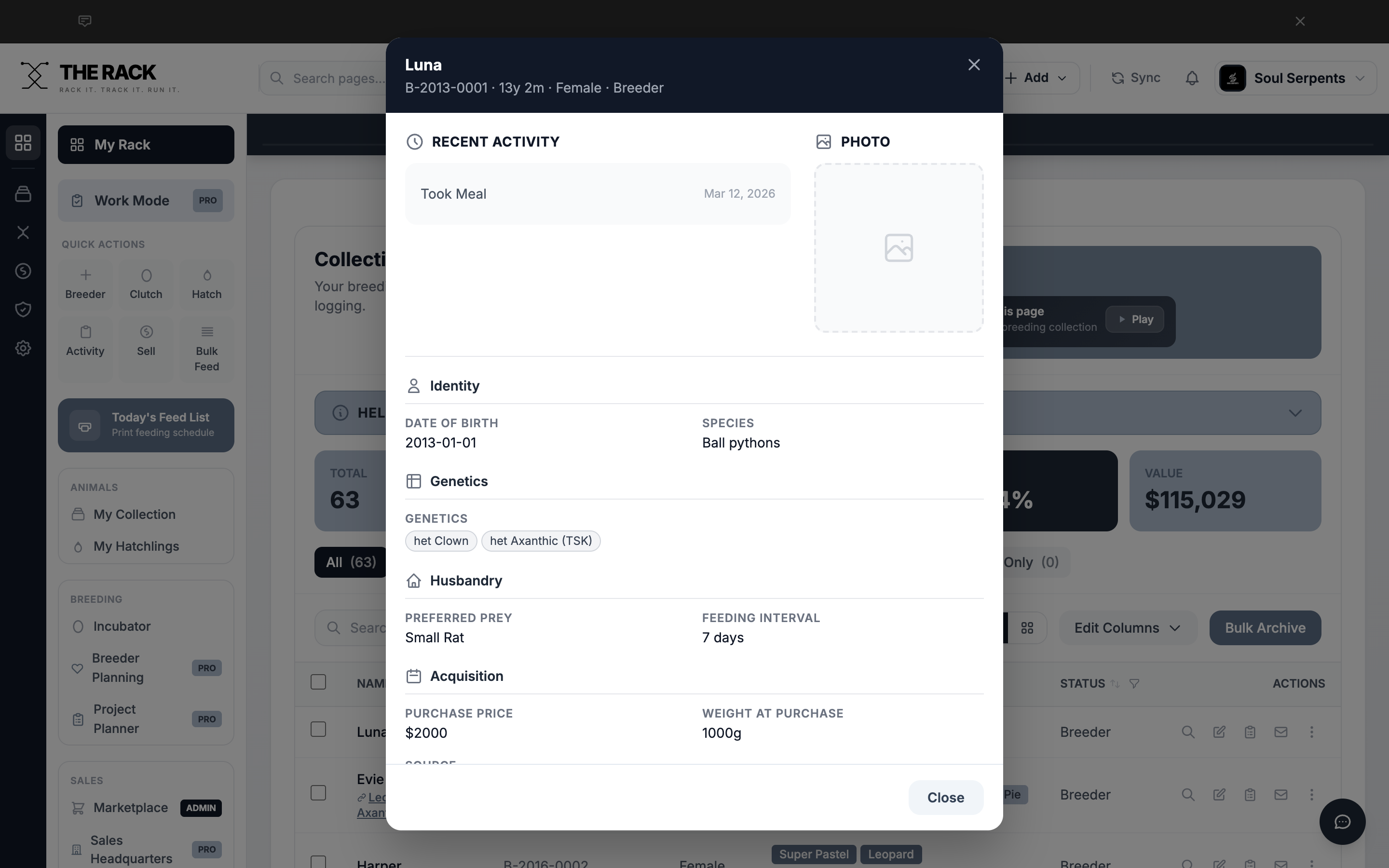
The animal profile modal. Upload or replace the image in the PHOTO section.
Step 7: Open an Animal's Full Profile
Click the Preview button on any animal to open their full profile. The profile modal shows everything about that animal in one place:
- Recent Activity -- Last feeding, shed, weight, or pairing event with date
- Photo -- The animal's profile image
- Identity -- Date of birth, species, unique ID
- Genetics -- Confirmed genes and possible hets
- Husbandry -- Preferred prey, feeding interval, substrate
- Acquisition -- Purchase price, weight at purchase, source
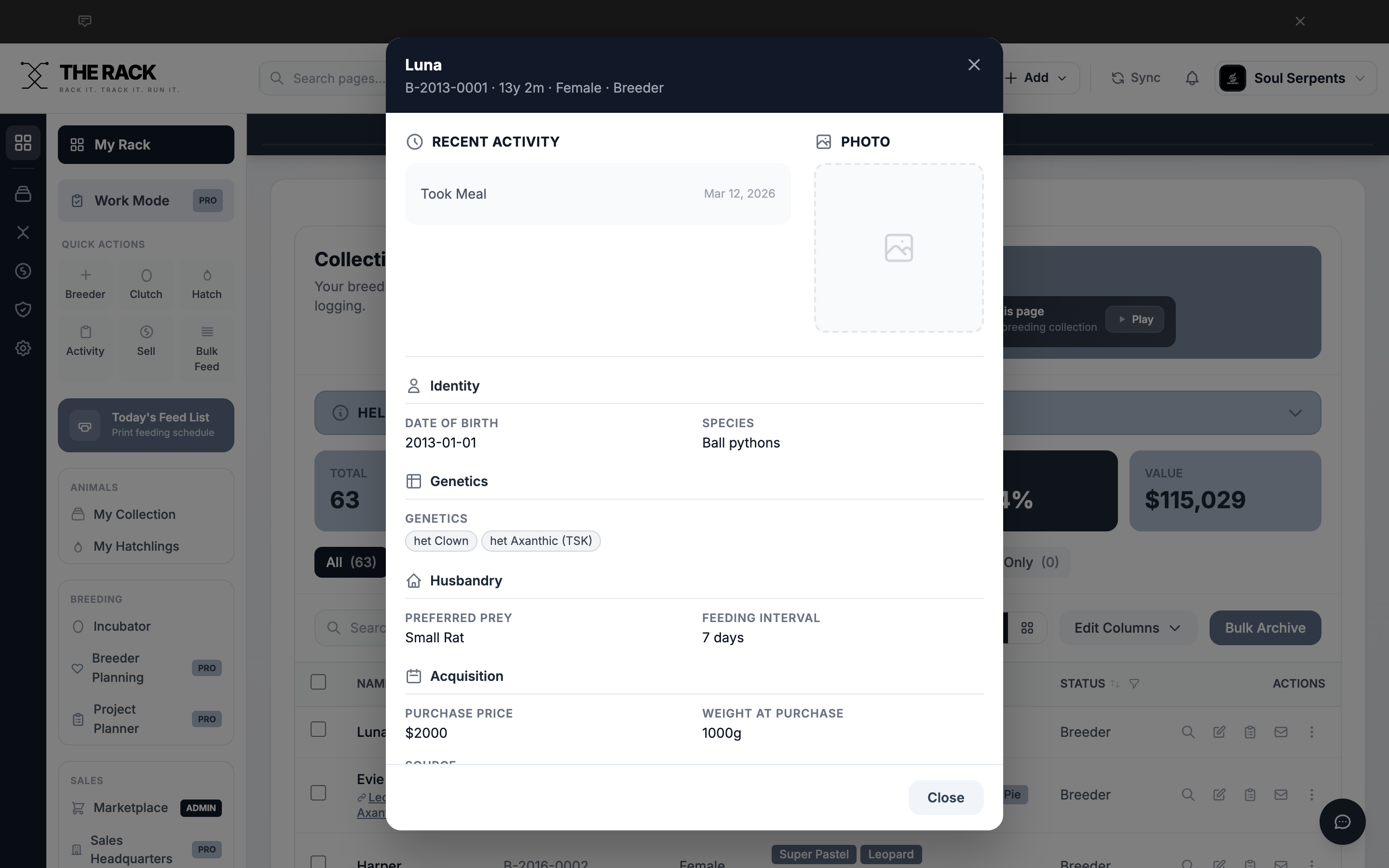
The full animal profile shows identity, genetics, husbandry, acquisition, and recent activity.
Screenshots and instructions verified against THE RACK v2.0. Last reviewed April 2026.
Built by a Breeder
Every Animal,
At Your Fingertips
Search, filter, browse, and manage your entire collection from one page. THE RACK is facility management software built for breeders.
See THE RACKFree for up to 5 animals. Keeper $10/mo. Breeder $20/mo. 7-day money-back guarantee.