
News / How to Use the Incubator
How to Use the Incubator
- One required field: Lay Date. Everything else is optional. Takes 1-2 minutes per clutch
- Clutch ID auto-generates from the Lay Date in the format CL-YYYY-NNNN
- Link parents to connect the clutch to your breeding records. Hatchlings inherit parent data automatically
- Season stats update in real time: Total, Incubating, Hatched, Avg Fertile, Avg Days
- Filter by season and status to view current incubating clutches or previously hatched
The Incubator page is your central hub for tracking active clutches. You can log new clutches, link parents, monitor incubation progress, and record hatches. Each clutch gets a unique ID and tracks lay date, estimated hatch date, fertile egg count, and status.
Steps
Step 1: Open the Incubator
Click Incubator in the left sidebar under the Breeding section. The Incubator page shows your incubator monitors at the top, followed by stats cards and your clutch list below.
You can also use the Clutch button in Quick Actions on the sidebar to go straight to adding a new clutch.
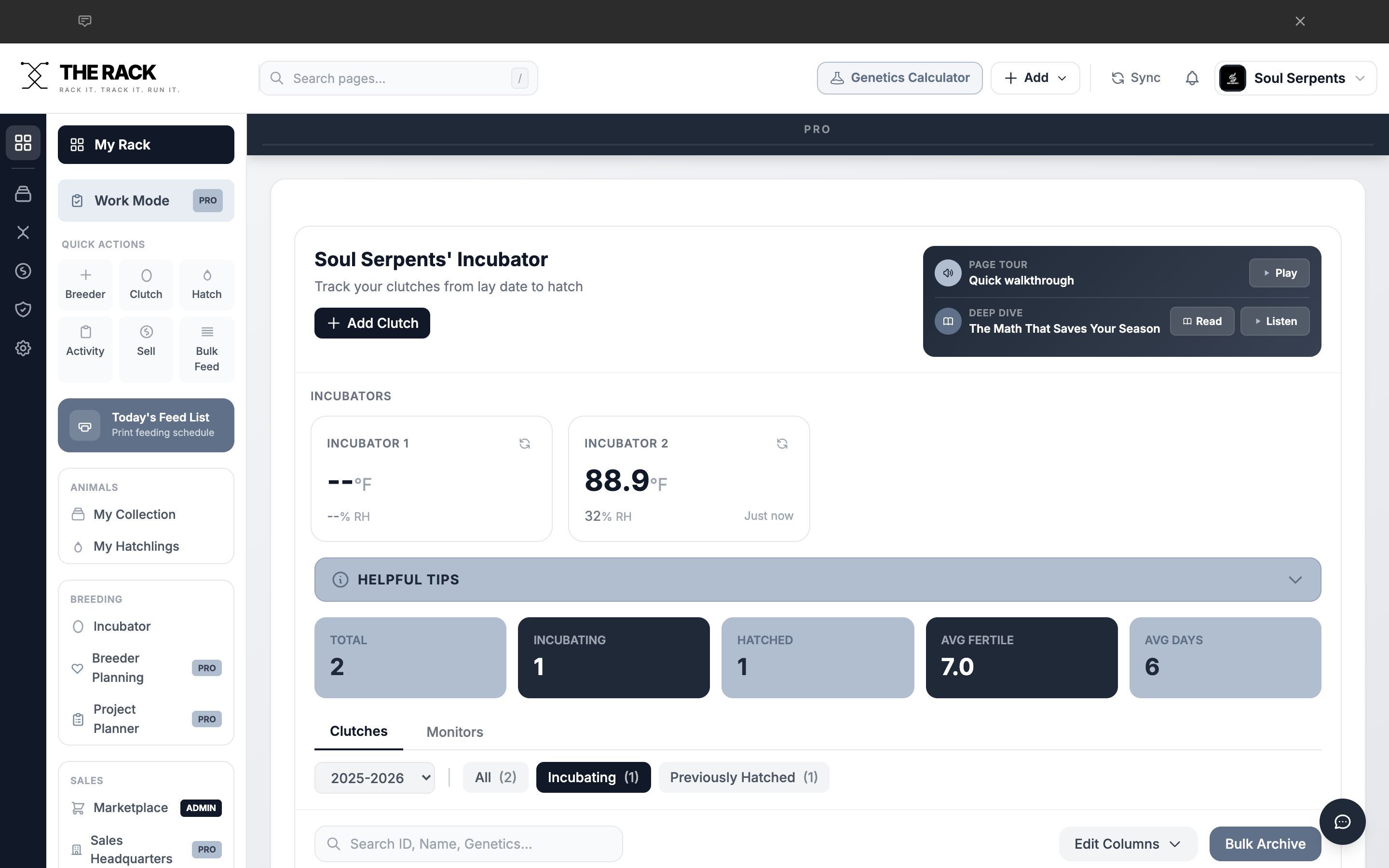
The Incubator page with monitors, stats, and clutch list.
Step 2: Add a New Clutch
Click the + Add Clutch button at the top of the page. This opens the Add Clutch form as a modal.
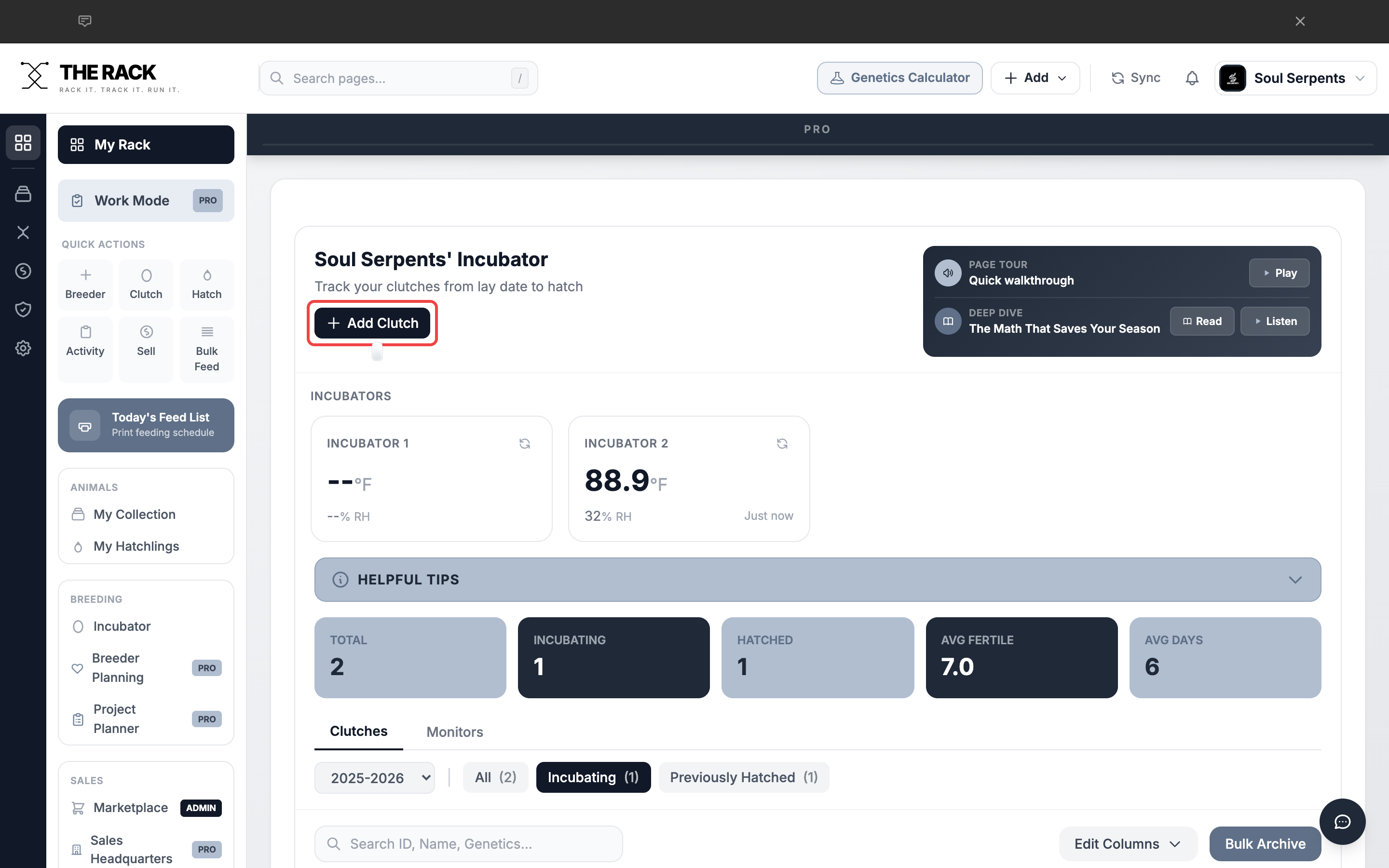
Click Add Clutch to open the form.
Track every clutch from lay to hatch
Lay Date. Hatch Countdown. Parent Linking. Season Stats.
THE RACK's Incubator calculates estimated hatch dates, counts down days remaining, links clutches to parents, and tracks season-over-season incubation averages. When hatchlings arrive, they inherit parent genetics automatically.
See Incubation TrackingStep 3: Fill In the Clutch Form
| Field | What to Enter | Status |
|---|---|---|
| Clutch ID | Auto-generates from Lay Date. Format: CL-YYYY-NNNN. | Auto |
| Lay Date | The date the eggs were laid. Triggers Clutch ID and estimated hatch date. | Required |
| Dam | Search and select the mother from your collection. | Optional |
| Sire | Search and select the father from your collection. | Optional |
| Incubator | Select which incubator this clutch is in. | Optional |
| # Laid / # Fertile / # Slugs | Enter egg counts. Fertile count is used in stats. | Optional |
| Status | Defaults to Incubating. Changes to Hatched when you log a hatch. | Auto |
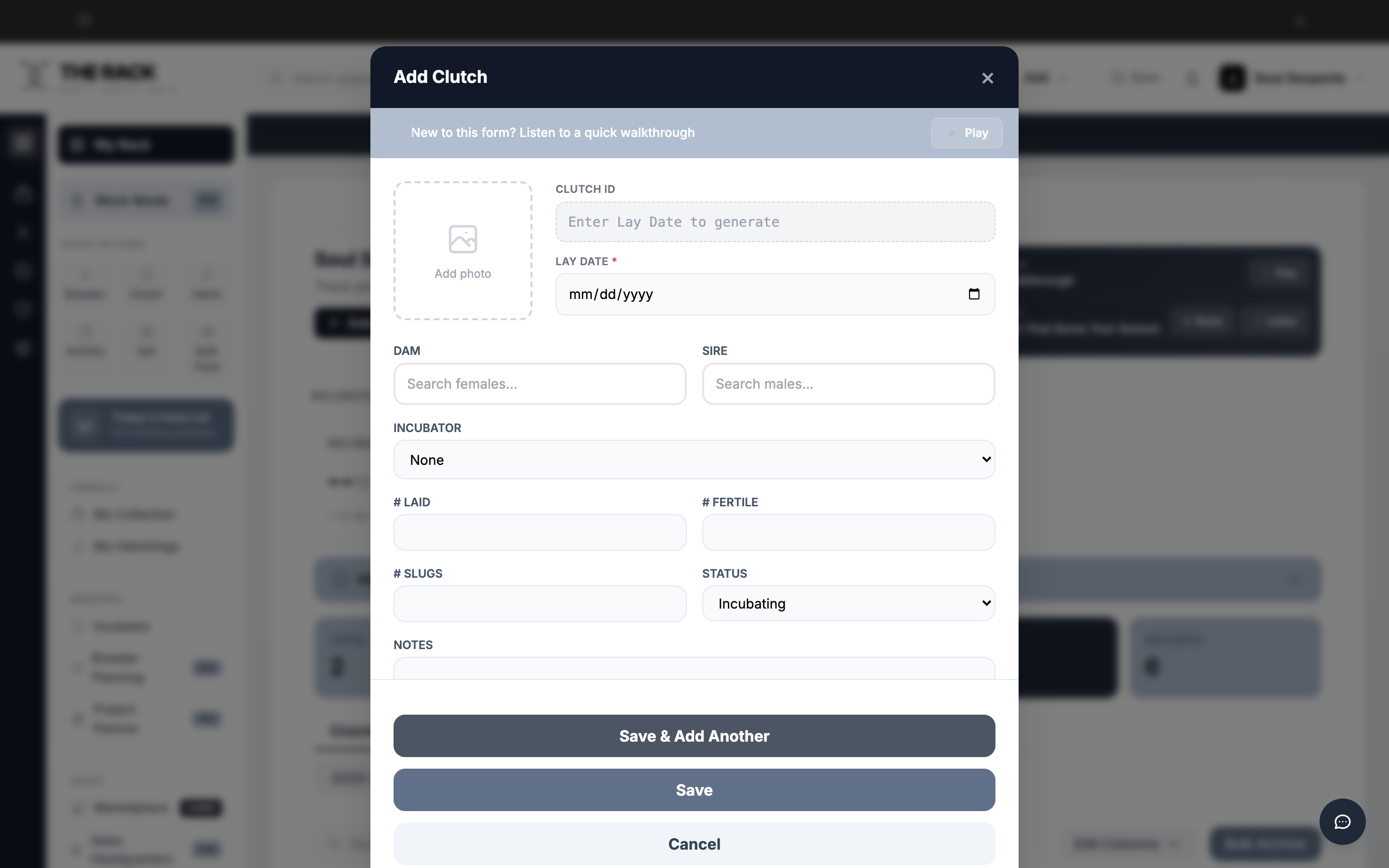
The Add Clutch form with all fields visible.
Step 4: Link the Parents
Use the Dam and Sire fields to link the clutch to its parents. Start typing a name or ID and select from the dropdown. Only females appear in the Dam field; only males in the Sire field.
Linking parents connects the clutch to your breeding records. When hatchlings are logged, they automatically inherit the parent data.
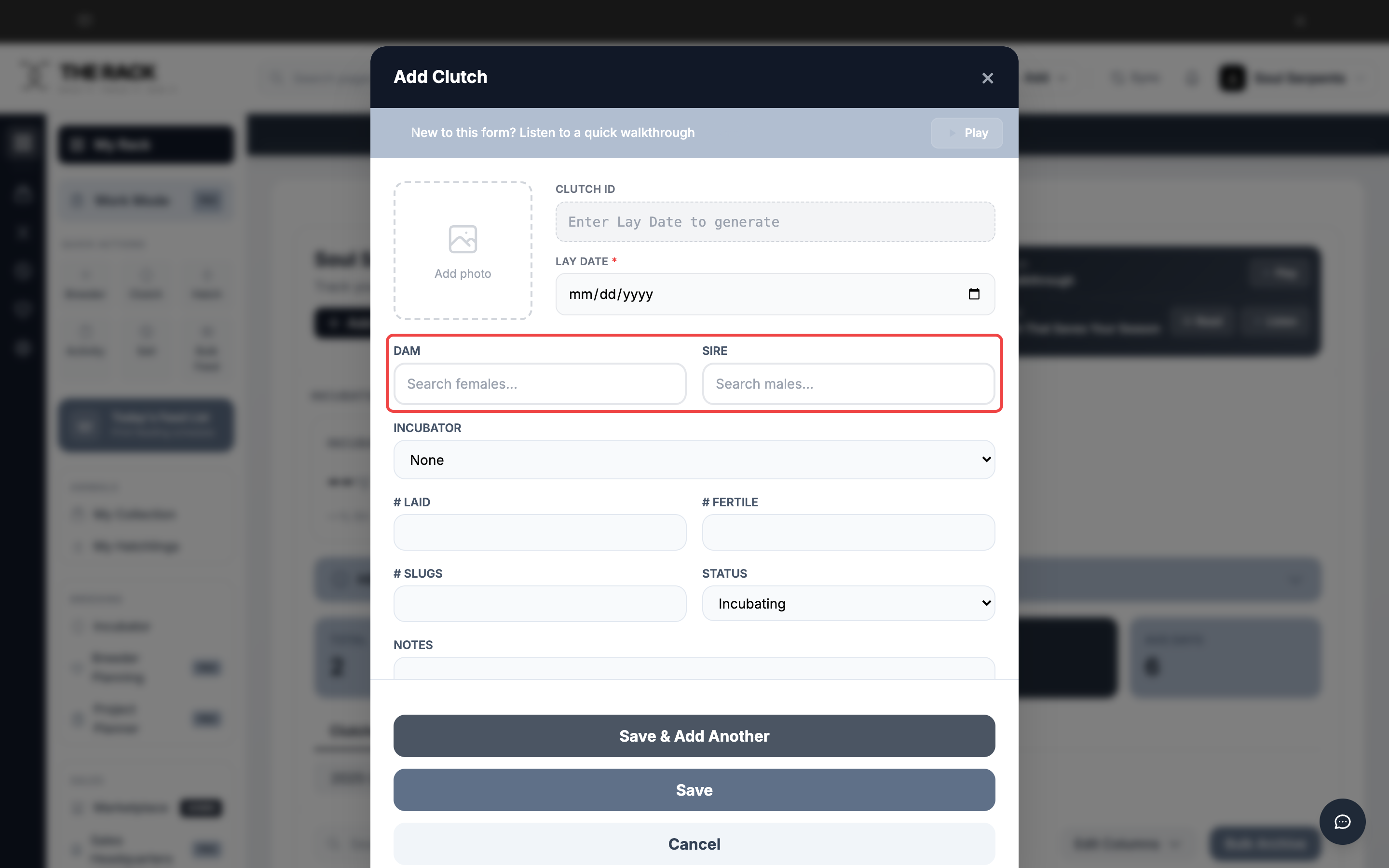
Search for the Dam (mother) and Sire (father) by name or ID.
Step 5: View Your Clutch List
After saving, your clutch appears in the table below the stats cards. Each row shows the Clutch ID, linked Sire and Dam, Lay Date, Estimated Hatch date, Days Left, Fertile egg count, and Status.
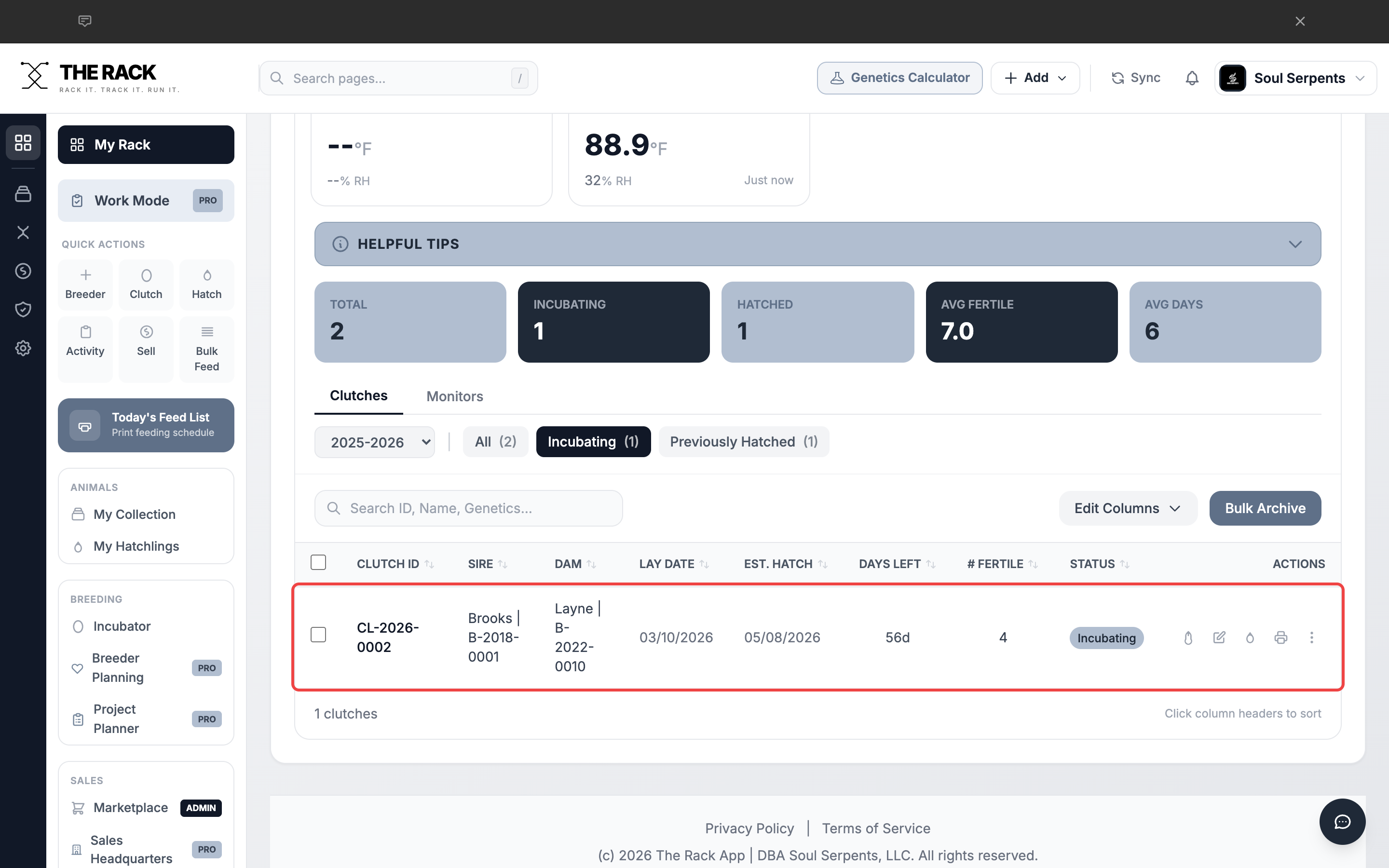
The clutch table with an active incubating clutch.
Step 6: Monitor Incubation Stats
The stats cards above the clutch list give you a quick snapshot of your incubation season:
- Total -- Total clutches for the selected season.
- Incubating -- Currently active clutches.
- Hatched -- Clutches that have completed incubation.
- Avg Fertile -- Average number of fertile eggs per clutch.
- Avg Days -- Average incubation period in days.
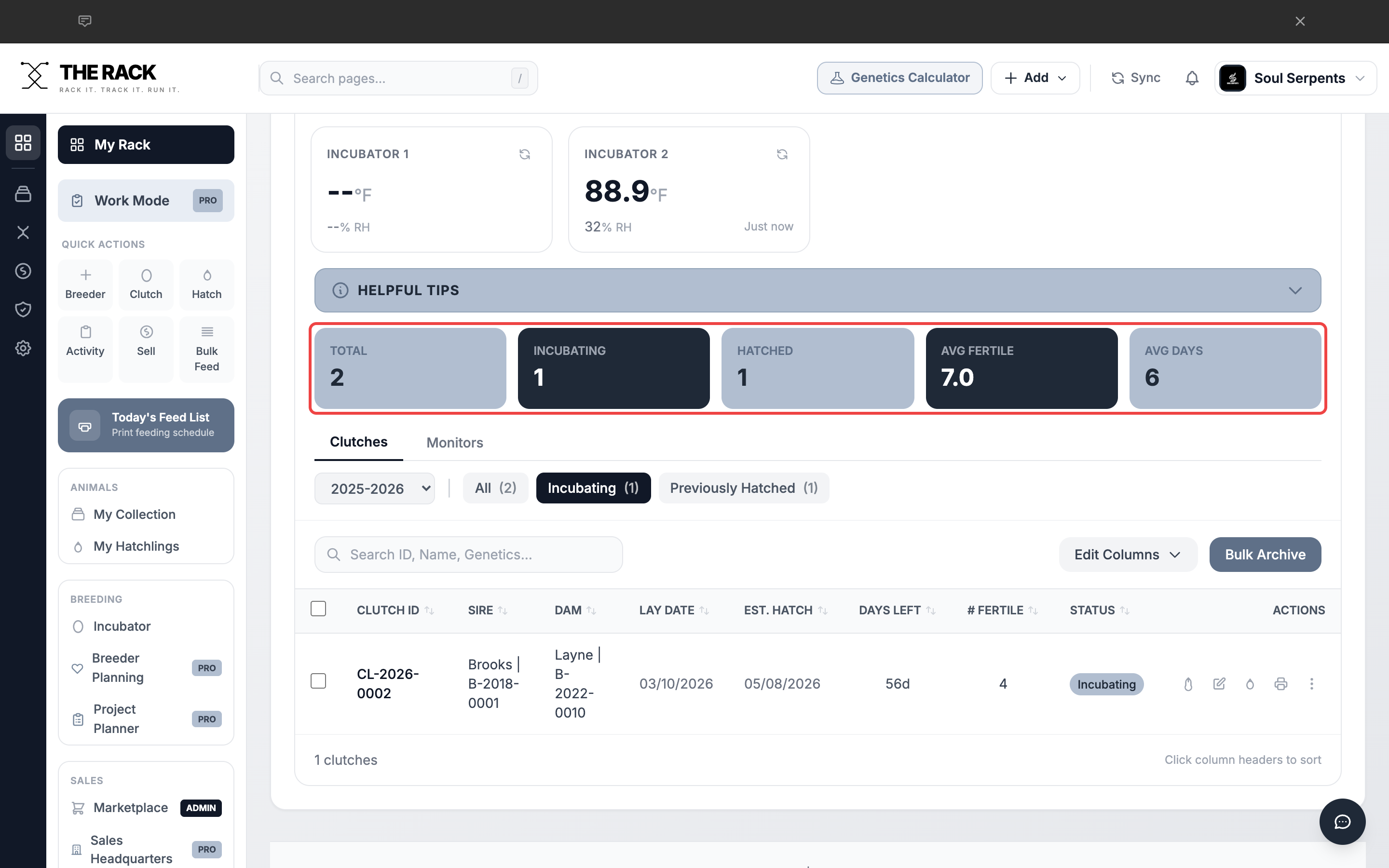
Season stats update in real time as you manage clutches.
Step 7: Filter by Season and Status
Use the season dropdown to switch between breeding seasons. The filter buttons let you view All, Incubating, or Previously Hatched clutches.
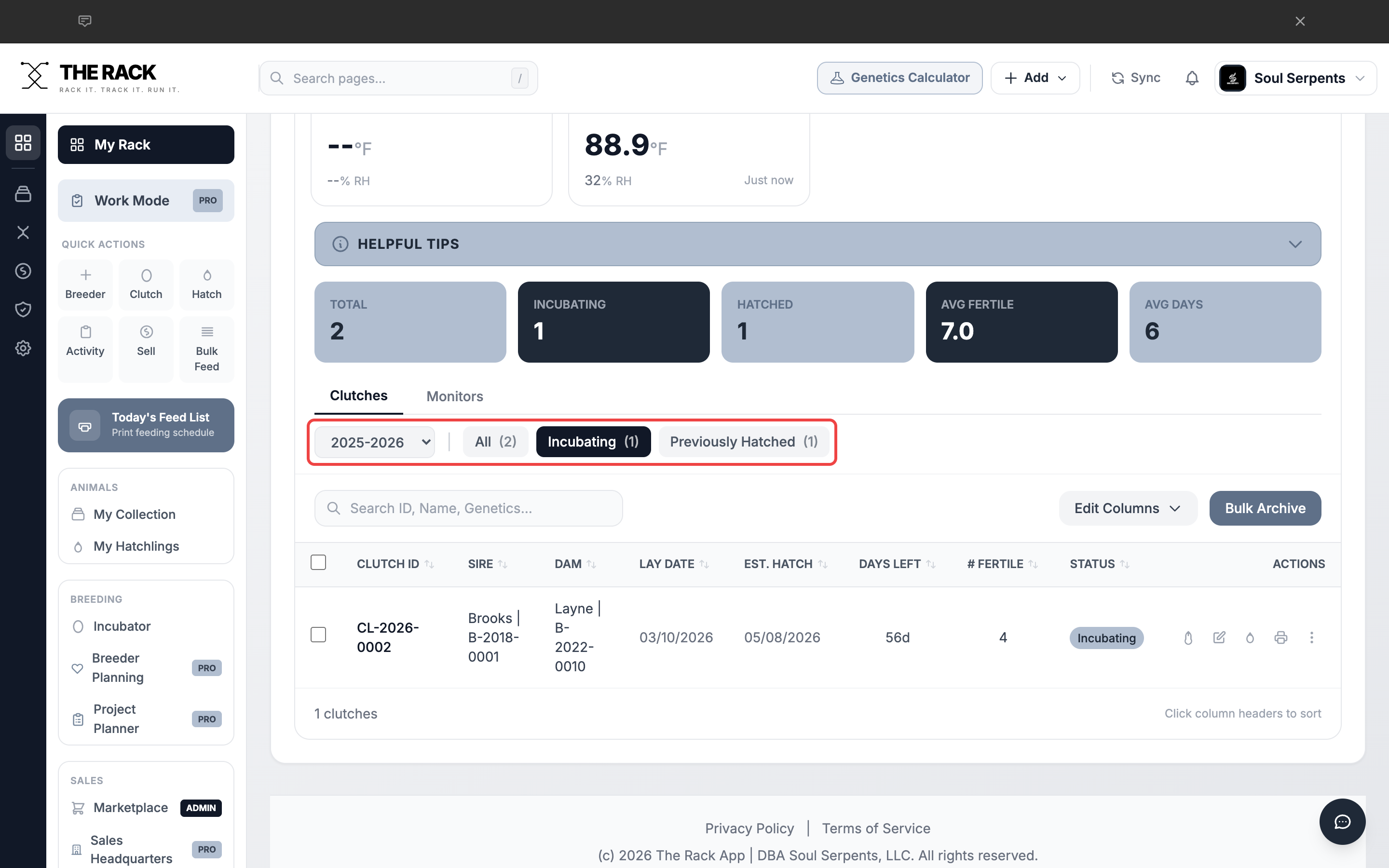
Filter clutches by season and incubation status.
Step 8: View Previously Hatched Clutches
Click Previously Hatched to see all completed clutches. These show a "Hatched" status badge. You can still click into any hatched clutch to view its full details, linked hatchlings, and breeding history.
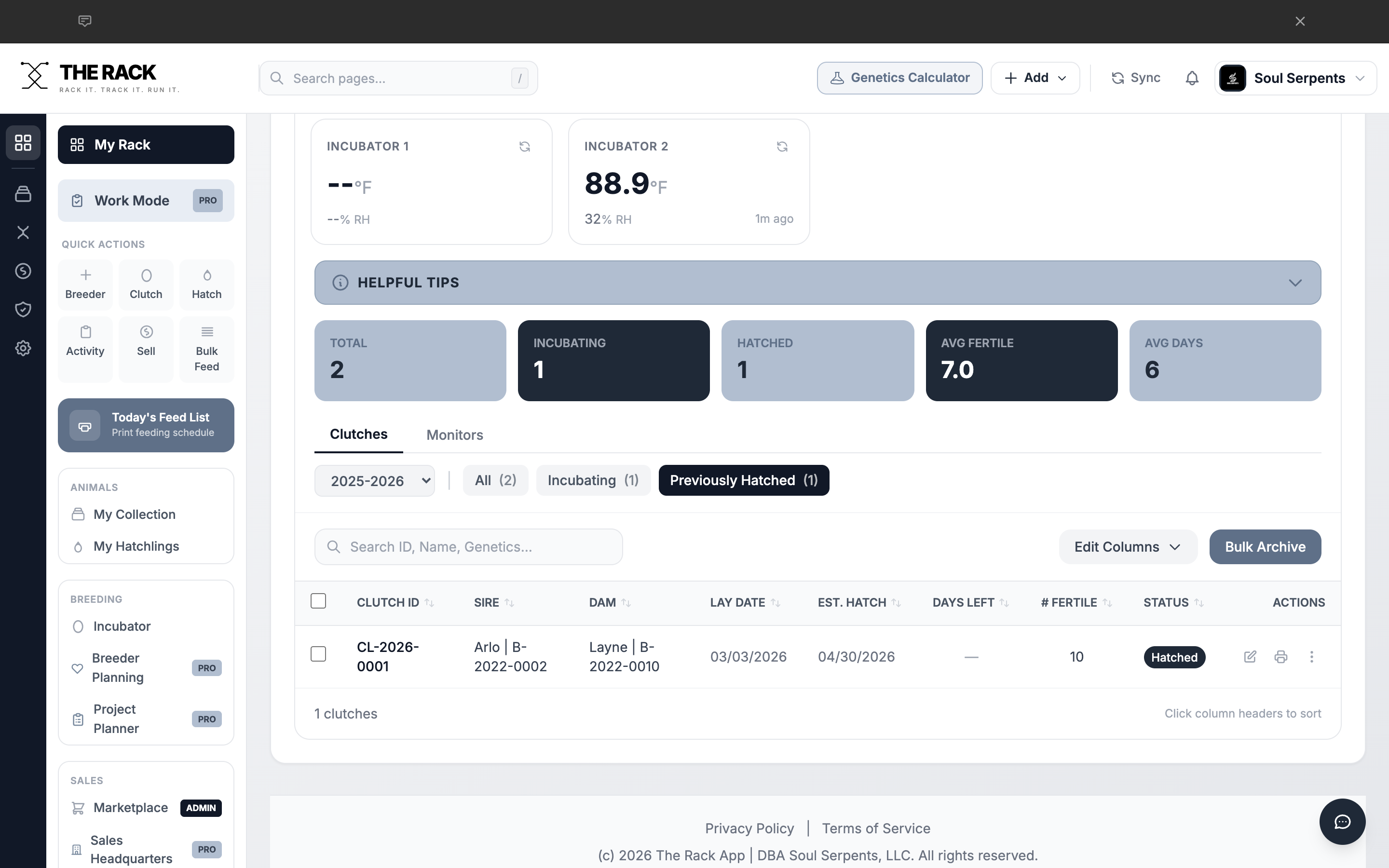
Previously Hatched view showing completed clutches.
Screenshots and instructions verified against THE RACK v2.0. Last reviewed April 2026.
Built by a Breeder
Every Clutch,
From Lay to Hatch
Clutch tracking. Hatch countdown. Parent linking. Season stats. THE RACK is facility management software that keeps your incubation organized.
See THE RACKFree for up to 5 animals. Keeper $10/mo. Breeder $20/mo. 7-day money-back guarantee.